
 Vitalii Holben
Wait for page to fully load before screenshot: 4 strategies
I took a screenshot of a public dashboard and got back an image with empty tables. Here are four strategies to wait for a page to fully load, with a real Puppeteer walkthrough.
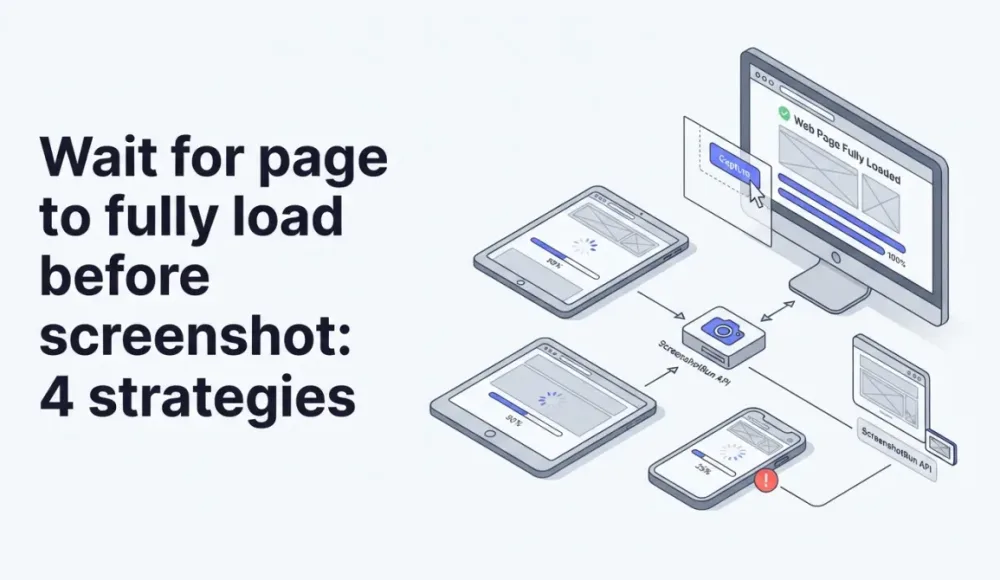
I tested 200 random sites from ProductHunt's top launches last month. Straight goto + screenshot, no waiting logic. 74 of the 200 came back with missing content: blank hero sections, spinners where charts should be, gray boxes instead of product images. The browser reported "load complete" for every single one of them.
The problem is that "loaded" means different things to different people. The browser fires load when HTML, CSS, and images referenced in the source are done. But modern pages fetch data from APIs after mount, hydrate React components client-side, and lazy-load images that aren't in the initial viewport. None of that is covered by the load event. The page looks done to the browser engine while the user is still staring at a skeleton.
There are four strategies for detecting when a page is actually ready to screenshot. Each works best in a different scenario, and none of them is universal. I use all four depending on the URL.
Why load and DOMContentLoaded aren't enough
Two events fire during page load that most tutorials treat as "done" signals. DOMContentLoaded fires when the HTML is parsed and the DOM tree is built. load fires when all resources referenced in the HTML (images, stylesheets, iframes) finish downloading. Neither event knows about JavaScript that runs after page load.
A Next.js dashboard that fetches data in useEffect fires load before the first API response arrives. A product page on Shopify fires load before reviews load from a third-party widget. An analytics dashboard built with Chart.js fires load before a single chart renders. The pattern is always the same: the shell is ready, the content is not.
If you're seeing blank or incomplete screenshots, the page is probably fine. Your timing is wrong. The blank screenshots guide covers the full list of causes, but in my experience, 80% of the time it's a waiting problem. The SPA screenshot guide digs into the React/Vue/Svelte specifics. This post focuses on the four strategies for detecting readiness, regardless of framework.
Strategy 1: wait for network silence
Puppeteer and Playwright both offer a "network idle" condition that waits until no new network requests fire for 500 milliseconds. In Puppeteer it's networkidle0 (zero inflight requests) or networkidle2 (two or fewer). Playwright calls it networkidle.
// Puppeteer
await page.goto('https://example.com', { waitUntil: 'networkidle0' });

// Playwright
await page.goto('https://example.com', { waitUntil: 'networkidle' });
This works well for server-rendered pages, marketing sites, and documentation. The page loads its resources, the network goes quiet, and the screenshot captures everything.
It breaks on anything with persistent connections. Chat widgets (Intercom, Crisp, Drift) keep a WebSocket open. Analytics scripts (Google Analytics, Segment, Mixpanel) send beacons in bursts. Long-polling endpoints for real-time data never let the network rest. On these pages, networkidle0 either times out or waits far longer than necessary.
networkidle2 is more forgiving because it tolerates two inflight requests, which usually covers the analytics ping and the chat socket. But it's still guessing. I use network idle as a baseline for unknown URLs where I can't inspect the DOM ahead of time, but it's the least reliable strategy for anything with dynamic content.
Strategy 2: fixed delay before capture
The simplest approach: wait a fixed number of seconds after page load, then screenshot.
await page.goto('https://example.com', { waitUntil: 'load' });
await page.waitForTimeout(3000); // 3 seconds
await page.screenshot({ path: 'screenshot.png' });
This is a blunt instrument, and I've heard every argument against it. It wastes time if the page loads in 500ms. It's too short if the page needs 5 seconds. It doesn't adapt to different network conditions. All true.
But there are cases where a fixed delay is the right tool. CSS animations that need to complete before the page looks right. Cookie consent banners that animate in after a 1-second delay. Pages where you can't identify a reliable DOM selector because the content is rendered into a canvas or WebGL context. For these, a calibrated delay works and a selector-based approach doesn't.
The trap is treating every page the same. A 3-second delay that works for one site wastes 150 minutes across 3,000 screenshots. At scale, the cost compounds. If you're capturing more than a handful of URLs, use delay as a fallback after a smarter strategy, not as the primary approach.
One pattern I've found useful: calibrate the delay per domain rather than per URL. Run a test batch of 10-20 pages from the same site, measure the actual render times in DevTools, and set your delay to the 95th percentile. A news site like Reuters might need 1.5 seconds; a data-heavy dashboard on Grafana Cloud might need 4. This gives you most of the speed benefit of a short delay without the risk of incomplete captures on slower pages.
Strategy 3: wait for a specific DOM element
This is the most reliable strategy when you know the target page. Instead of guessing when the page is "done" based on network activity or elapsed time, you tell the browser exactly what to look for: a CSS selector that only appears after the real content renders.
// Puppeteer
await page.goto('https://dashboard.example.com');
await page.waitForSelector('.chart-container canvas', { timeout: 10000 });
await page.screenshot({ path: 'dashboard.png' });

// Playwright
await page.goto('https://dashboard.example.com');
await page.waitForSelector('.chart-container canvas', { timeout: 10000 });
await page.screenshot({ path: 'dashboard.png' });
The right selector is one that appears late in the rendering cycle. Not the page shell, not the loading spinner, not the navigation bar. Pick something that only exists after the data arrives and the components render. Good candidates:
- A heading inside the main content area (
article h1,.product-title) - A data attribute set by your framework after hydration (
[data-loaded="true"]) - The last item in a dynamically loaded list (
.product-card:nth-child(10)) - A chart canvas or SVG element (
.chart-container svg)
Finding the right selector takes a few minutes of inspecting the page in DevTools. Open the target URL, watch the DOM in the Elements panel while it loads, and find the element that appears last. That's your selector.
I combine waitForSelector with a short delay (500ms to 1 second) after the selector appears. Some pages render the container before populating it with data, so the element exists but is empty for a moment. The extra delay covers that gap. The wait_for_selector feature page covers selector strategies in detail.
Strategy 4: custom readiness check with JavaScript
Some pages don't have a single selector that signals "done." Dashboards with six independent panels that each fetch their own data. Infinite feeds where content loads progressively. Pages that render into <canvas> without meaningful DOM elements. For these, you need a custom readiness function.
The most reliable approach is a MutationObserver that watches the DOM for changes and resolves when mutations stop for a defined period:
await page.goto('https://complex-dashboard.example.com');

await page.evaluate(() => {
  return new Promise((resolve) => {
    let timeout;
    const observer = new MutationObserver(() => {
      clearTimeout(timeout);
      timeout = setTimeout(() => {
        observer.disconnect();
        resolve();
      }, 2000); // 2 seconds of DOM stability
    });
    observer.observe(document.body, {
      childList: true, subtree: true, attributes: true
    });
    // Fallback: resolve after 15 seconds regardless
    setTimeout(() => { observer.disconnect(); resolve(); }, 15000);
  });
});

await page.screenshot({ path: 'dashboard.png' });
This waits until the DOM hasn't changed for 2 seconds, then captures. The 15-second fallback prevents infinite hangs on pages with continuous animations or live data feeds.
A simpler variant uses requestAnimationFrame to wait for paint stability, but it's less reliable because paint can stabilize before async data arrives. The MutationObserver approach catches DOM changes from any source: API responses being rendered, web fonts triggering reflows, lazy images loading into view.
One gotcha with page.evaluate(): it runs in the page's JavaScript context, not yours. If the page overrides MutationObserver or Promise (some anti-bot scripts do this), your readiness check can break silently. I've hit this on exactly two sites in a year, but it's worth knowing. Using page.evaluateHandle() with a timeout wrapper provides an additional safety net.
Combining strategies for production reliability
No single strategy handles every page. In production, I layer them:
For known pages (your own app, a client's dashboard, a specific competitor you monitor): use Strategy 3 (waitForSelector) with a selector you've verified. Add a 500ms post-render delay. This is fast and reliable because you've done the inspection work upfront.
For unknown pages (user-submitted URLs, batch processing a directory of sites): start with networkidle2 to cover the common case, then add a 2-3 second delay as a safety margin. If that produces incomplete results on specific URLs, switch to the MutationObserver approach from Strategy 4.
For high-value captures (legal evidence, compliance archives, visual regression baselines): use all three in sequence. networkidle0 first, then waitForSelector on the main content area, then a 1-second post-render delay. The extra seconds per capture don't matter when accuracy does.
Edge cases that break every strategy
Some pages resist all four approaches. Infinite scroll feeds never finish loading because there's always more content below. The MutationObserver sees constant changes. networkidle never fires because each scroll triggers new fetches. The best you can do is scroll to a fixed depth and capture what's there.
CAPTCHA and anti-bot walls let the page "load" but hide the real content behind a challenge. The DOM is ready, the network is idle, but the screenshot shows a Cloudflare challenge page instead of the actual site. Stealth mode helps on some sites, but Cloudflare's turnstile and hCaptcha are designed to block automated browsers.
Iframes with cross-origin content have their own load cycle that your main-frame waitForSelector can't observe. An embedded YouTube video, a Stripe payment form, or a third-party comment widget might still be loading when your screenshot fires. You can wait for the iframe element itself, but not for its contents to render.
Pages that meta-refresh or JavaScript-redirect after load send you to a different URL entirely. Your selector won't exist because you're on the wrong page. Check the final URL after navigation with page.url() before running your wait strategy.
How the screenshot API handles page readiness
I built these strategies into screenshotrun so you don't have to implement them yourself. Three parameters control waiting behavior:
{
  "url": "https://dashboard.example.com",
  "wait_for_selector": ".chart-container canvas",
  "delay": 2,
  "timeout": 45
}
wait_for_selector pauses the capture until a CSS selector appears in the DOM, with a 10-second limit. delay adds a fixed wait (0-10 seconds) after the page reaches network idle. timeout sets the overall page load limit (5-60 seconds, default 30). They combine: the renderer waits for network idle, then waits for the selector, then waits the delay period, then captures.
For pages that need custom logic, the js parameter lets you inject JavaScript that runs before the screenshot fires. You can implement Strategy 4's MutationObserver directly in the API call. And for pages where the problem is cookie banners or chat widgets blocking content rather than load timing, block_cookies and block_chats remove them before the capture.
For unknown URLs at scale, I pair delay: 3 with wait_for_selector on a generic main-content selector. It handles about 90% of pages correctly. The remaining 10% need URL-specific selectors or custom JavaScript.
All four strategies above work in any browser automation tool: Puppeteer, Playwright, Selenium, or an API. The underlying principle is the same: don't trust the browser's "load" event, and pick your wait strategy based on what you know about the target page. Start with waitForSelector when you can, fall back to network idle plus delay when you can't, and use MutationObserver for the edge cases where nothing else works.
If you're capturing full scrollable pages, the full-page capture guide covers the adjacent stitching problem. Viewport size also matters here: the viewport configuration page explains how it affects which lazy-loaded elements the browser decides to render. And if your screenshots keep failing with timeouts rather than timing issues, the error handling and retry guide walks through backoff strategies. For HTML-to-image captures, waiting is less of a concern since you control the markup, though external web fonts loaded via <link> tags still need a moment to render.
I spent a lot of hours figuring out which strategy fits which scenario. Hopefully this saves you some of that time. If you only need a specific part of the page rather than the whole thing, check out our guide on taking a screenshot of a specific element.
Frequently Asked Questions
networkidle0 waits until there are zero inflight network requests for 500ms. networkidle2 waits until two or fewer requests remain. networkidle2 is more forgiving for pages with persistent connections like analytics or chat widgets, but neither guarantees that JavaScript-rendered content is visible.
It depends on the page. For known pages, use waitForSelector with a CSS selector that appears after content loads — this is faster and more reliable than a fixed delay. For unknown pages, 2-3 seconds after network idle covers most cases. Avoid delays longer than 5 seconds at scale, as the time compounds across hundreds of captures.
Yes, but not with a single waitForSelector call. In Puppeteer or Playwright, chain multiple waitForSelector calls sequentially, or use Promise.all to wait for several selectors in parallel. Alternatively, use a MutationObserver-based readiness check that watches for DOM stability across all page regions.
A fixed timeout does not adapt to actual page load speed. If the page needs 4 seconds but your timeout is 3, the screenshot is incomplete. If the page loads in 500ms, you waste 2.5 seconds. Use waitForSelector instead when possible — it resolves as soon as the target element appears, regardless of timing.
WebSocket connections prevent networkidle from resolving because the connection stays open. Use waitForSelector to wait for a specific DOM element that only appears after the WebSocket data renders. If no reliable selector exists, use a MutationObserver that resolves when DOM changes stop for 2 seconds.
Fix "Could Not Find Expected Browser (Chrome) Locally" in Puppeteer
Puppeteer cannot find Chrome? Fix the "could not find expected browser locally" error in Docker, CI/CD, serverless, monorepos, and local development.
Read more →
Fix Puppeteer "Browser Has Disconnected" Error (All Causes)
Read more →
Why Instagram Breaks Your Screenshots (And How to Fix It with Playwright)
Instagram shows two login popups, triggers React re-renders when you hide them wrong, and locks scrollHeight to the viewport. Three problems, three fixes for Playwright and Puppeteer.
Read more →