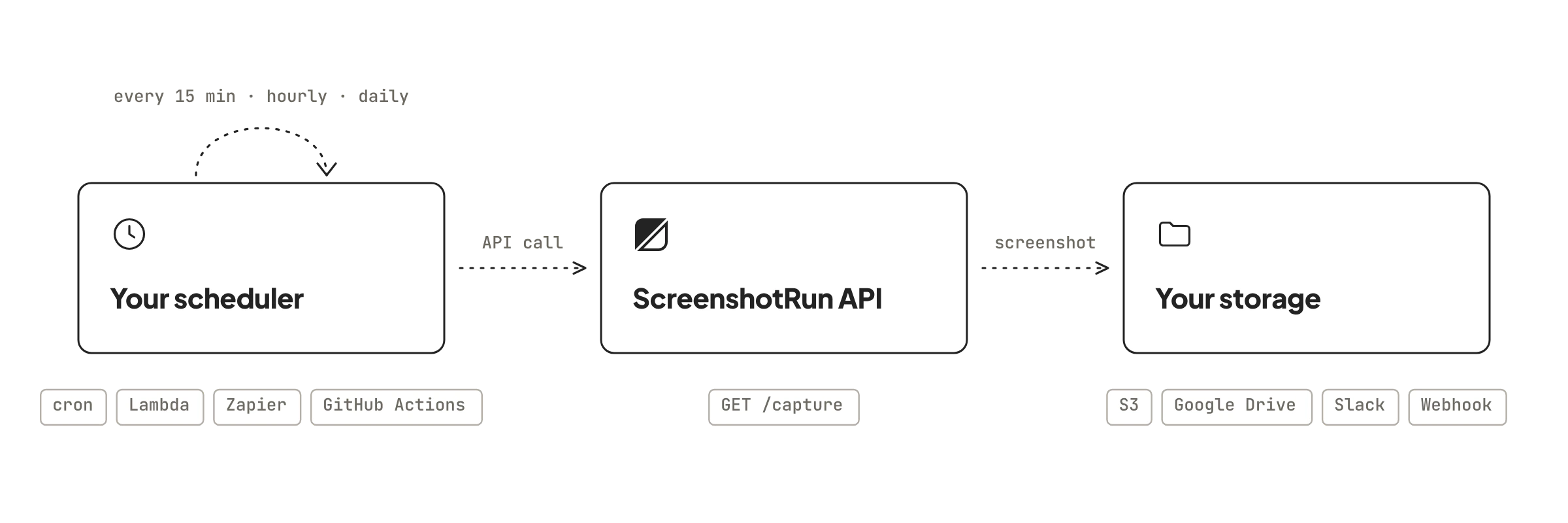
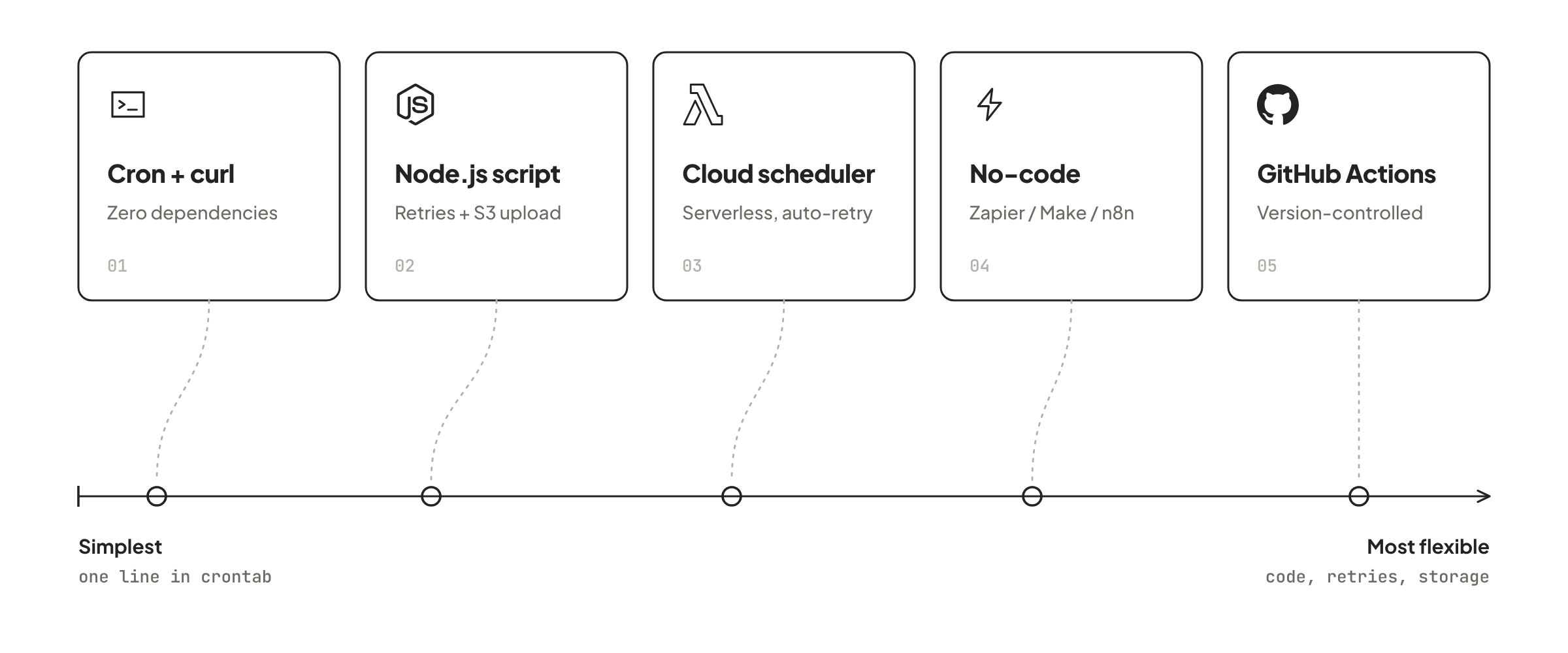
The ScreenshotRun API doesn't include a built-in scheduler. On purpose. Scheduling belongs in your infrastructure, not locked inside a third-party screenshot service you can't control. This page walks through five ways to trigger recurring captures: bare cron, a Node.js script with retries, cloud schedulers like Lambda, no-code platforms, and GitHub Actions. Pick the one that fits your stack.
Every method calls the same endpoint. The only difference is what triggers the call and where the result lands.
Cron + curl: the 3-minute setup
If you have a Linux server (or a Mac that stays on), cron is the fastest path to scheduled website screenshots. One line in your crontab, one curl call, done.
# Capture example.com every 6 hours, save with timestamp
0 */6 * * * curl -s "https://api.screenshotrun.com/v1/screenshots/capture" \
  -H "Authorization: Bearer YOUR_API_KEY" \
  -G \
  --data-urlencode "url=https://example.com" \
  --data-urlencode "full_page=true" \
  --data-urlencode "format=webp" \
  -o "/var/screenshots/example-$(date +\%Y\%m\%d-\%H\%M).webp"
That's it. Every six hours, cron wakes up, hits the API, and drops a timestamped WebP into /var/screenshots/. No daemon, no process manager, no dependencies beyond curl.
Cron works for small-scale scheduling because it's already running on your server. Doesn't crash, doesn't need updates, doesn't eat memory between runs. I've kept setups like this on a $5 Hetzner VPS for months without touching them. For 1-10 URLs a few times a day, there's nothing simpler.
Where it falls apart: cron doesn't retry on failure. If the API returns an error at 3 AM (network blip, DNS timeout), that capture is just gone. No log, no alert, no second attempt. You'll notice the gap days later when someone checks the archive. "Why is Tuesday missing?" For anything where gaps matter (compliance captures, legal archival), you want something with built-in retries.
Add retries and S3 upload with a Node.js wrapper
Cron handles timing. But if you need retries, structured logging, and automatic upload to S3, wrap the API call in a short script.
const axios = require('axios');
const { S3Client, PutObjectCommand } = require('@aws-sdk/client-s3');

const URLS = [
  'https://example.com',
  'https://example.com/pricing',
  'https://competitor.com',
];

const s3 = new S3Client({ region: 'us-east-1' });

async function captureAndStore(url, retries = 2) {
  const slug = new URL(url).hostname.replace(/\./g, '-');
  const ts = new Date().toISOString().replace(/[:.]/g, '-');

  for (let attempt = 0; attempt <= retries; attempt++) {
    try {
      const res = await axios.get(
        'https://api.screenshotrun.com/v1/screenshots/capture',
        {
          headers: { Authorization: `Bearer ${process.env.SR_KEY}` },
          params: {
            url,
            full_page: true,
            format: 'webp',
            block_cookies: true,
            block_ads: true,
            delay: 1500,
          },
          responseType: 'arraybuffer',
          timeout: 30000,
        }
      );

      const key = `screenshots/${slug}/${ts}.webp`;
      await s3.send(new PutObjectCommand({
        Bucket: process.env.S3_BUCKET,
        Key: key,
        Body: res.data,
        ContentType: 'image/webp',
      }));

      console.log(`OK: ${url} → s3://${process.env.S3_BUCKET}/${key}`);
      return;
    } catch (err) {
      console.error(`Attempt ${attempt + 1} failed for ${url}: ${err.message}`);
      if (attempt < retries) await new Promise(r => setTimeout(r, 5000));
    }
  }
  console.error(`FAILED after ${retries + 1} attempts: ${url}`);
}

(async () => {
  for (const url of URLS) {
    await captureAndStore(url);
  }
})();
Schedule it with cron: 0 */6 * * * node /opt/scripts/scheduled-capture.js. The script covers the parts that bare curl can't handle: retry with backoff, structured file naming, S3 upload, and a log trail you can grep later.
Three URLs every 6 hours means 12 screenshots per day. On a Starter plan (3,000 monthly captures), that leaves plenty of room for ad-hoc API calls. If you're scheduling 20+ URLs on an hourly basis, you'll need the Pro or Growth tier. More on costs at the bottom.
Cloud schedulers when you don't have a server
Not everyone keeps a VPS running 24/7. Honestly, maintaining a server just to run cron feels like overkill when cloud platforms have purpose-built schedulers that cost fractions of a cent per invocation.
AWS: EventBridge + Lambda
EventBridge triggers a Lambda function on whatever schedule you set. The Lambda calls the ScreenshotRun API and drops the result in S3. Lambda's built-in retry handles transient failures automatically, so you don't need to code that yourself.
# lambda_function.py
import os
import boto3
import requests
from datetime import datetime

s3 = boto3.client('s3')

def handler(event, context):
    urls = event.get('urls', ['https://example.com'])

    for url in urls:
        resp = requests.get(
            'https://api.screenshotrun.com/v1/screenshots/capture',
            headers={'Authorization': f'Bearer {os.environ["SR_KEY"]}'},
            params={
                'url': url,
                'full_page': True,
                'format': 'webp',
                'block_cookies': True,
            },
            timeout=30,
        )

        slug = url.split('//')[1].replace('/', '-').rstrip('-')
        key = f'screenshots/{slug}/{datetime.utcnow():%Y%m%d-%H%M}.webp'

        s3.put_object(
            Bucket=os.environ['BUCKET'],
            Key=key,
            Body=resp.content,
            ContentType='image/webp',
        )

    return {'captured': len(urls)}
Set the EventBridge rule to rate(6 hours) or cron(0 */6 * * ? *). Lambda invocations cost about $0.0000002 each, so compute is basically free. You pay for the API calls and S3 storage, nothing else.
Google Cloud: Cloud Scheduler + Cloud Functions
Same pattern, different platform. Cloud Scheduler hits an HTTP endpoint (your Cloud Function) on a cron schedule. Google's version has a dashboard for managing schedules, and you can set retry policies in the scheduler config rather than handling them in code.
Vercel and Netlify cron
Both platforms support cron triggers for serverless functions. If your frontend already lives on Vercel, adding a vercel.json cron config that calls an API route takes about 5 minutes. Netlify's scheduled functions work the same way. Free tiers limit you to daily or hourly intervals, but that covers most archival and monitoring use cases.
No-code scheduling with Zapier, Make, and n8n
For teams that don't write or maintain code, automation platforms handle the full pipeline: trigger on a schedule, call the API, save the result, send a notification.
The setup is the same across all three:
- Trigger: Schedule (hourly, daily at 9 AM, every Monday)
- Action: HTTP request to ScreenshotRun API
- Action: Upload the screenshot to Google Drive, Dropbox, Slack, or email
In Zapier, that's a 3-step zap. Make.com uses an HTTP module in a scenario. n8n has a cron trigger node plus an HTTP request node. All three have screenshot-specific walkthroughs linked above.
One thing to watch: Zapier's free tier runs schedules every 15 minutes at best, and each execution handles one item. Capturing 10 URLs per run needs a loop step or a paid plan. Make.com is more flexible here, and self-hosted n8n has no limits at all.
GitHub Actions: version-controlled screenshots on a cron
This one caught me off guard when I first saw it in a customer's repo. GitHub Actions supports schedule triggers with cron syntax. Combine that with a workflow that calls the API and commits screenshots directly to the repository, and you get a version-controlled archive without running any infrastructure yourself.
# .github/workflows/scheduled-screenshots.yml
name: Scheduled Screenshots
on:
  schedule:
    - cron: '0 8 * * 1-5'  # weekdays at 8 AM UTC

jobs:
  capture:
    runs-on: ubuntu-latest
    steps:
      - uses: actions/checkout@v4

      - name: Capture homepage
        run: |
          curl -s "https://api.screenshotrun.com/v1/screenshots/capture" \
            -H "Authorization: Bearer ${{ secrets.SR_KEY }}" \
            -G \
            --data-urlencode "url=https://example.com" \
            --data-urlencode "full_page=true" \
            --data-urlencode "format=png" \
            --data-urlencode "width=1280" \
            -o screenshots/homepage-$(date +%Y%m%d).png

      - name: Commit screenshots
        run: |
          git config user.name "Screenshot Bot"
          git config user.email "[email protected]"
          git add screenshots/
          git diff --staged --quiet || git commit -m "Daily screenshot $(date +%Y-%m-%d)"
          git push
Every weekday at 8 AM UTC, GitHub spins up a runner, captures the page, and commits the PNG. Git gives you the history for free. What did the homepage look like three months ago? git log --oneline screenshots/ and check out that commit.
Caveats worth knowing. GitHub's scheduled workflows don't fire at the exact time. There's a queue delay, sometimes 5-15 minutes, occasionally worse during peak hours. And if your repo hasn't had any activity in 60 days, GitHub silently disables the schedule. Fine for active projects. Not great for set-and-forget archives. For those, Lambda or a plain cron job is more reliable.
Pick the right capture interval
How often should you capture? That depends on what you're tracking and how fast the page changes.
| Use case | Recommended interval | Why |
|---|---|---|
| Competitor pricing pages | Every 6-12 hours | Prices change daily, rarely more often |
| Your own production pages | Every 1-4 hours | Catch deploy regressions before users do |
| Compliance / regulatory pages | Every 24 hours | Daily record satisfies most audit requirements |
| News and media sites | Every 1-2 hours | Content rotates frequently |
| Legal evidence archiving | On trigger + daily backup | Event-driven captures plus a daily safety net |
| Marketing campaign pages | Hourly during the campaign | Track A/B variants, catch unauthorized changes |
A common mistake: scheduling captures too frequently "just in case." Capturing a static about page every 15 minutes burns 96 credits a day and gives you 96 identical images. Once or twice a day is enough for pages that change weekly. Save the high-frequency slots for pages that actually move.
Does cache_ttl conflict with scheduled captures? Not if you use it deliberately. Set cache_ttl=3600 as a safety net, and even if a misconfigured trigger fires twice in an hour, the second call returns the cached result without consuming a fresh render.
Organize the archive before it outgrows you
Ten URLs captured four times a day is 40 images. Over a month, 1,200 files. Without a naming convention, you end up with a folder of timestamped PNGs that nobody can find anything in.
A structure that's worked well:
screenshots/
  example-com/
    2026-10-27-0800.webp
    2026-10-27-1400.webp
    2026-10-27-2000.webp
  competitor-com/
    pricing/
      2026-10-27-0800.webp
  your-app-com/
    dashboard/
      2026-10-27-0800.webp
Domain as the top-level folder, URL path as subfolder, timestamp as filename. WebP over PNG when file size matters: a full-page WebP at quality=85 runs 60-70% smaller than the equivalent PNG, with no visible difference. For legal or compliance archives where every pixel has to match the original render exactly, stick with PNG.
If you're on S3, enable lifecycle policies to move files older than 90 days to Glacier. Archival storage is $0.004/GB versus $0.023 for standard. A year of daily captures across 20 URLs produces roughly 15-20 GB in WebP. That's under $1/month in Glacier. Cheap enough to keep indefinitely.
Scale up with webhooks
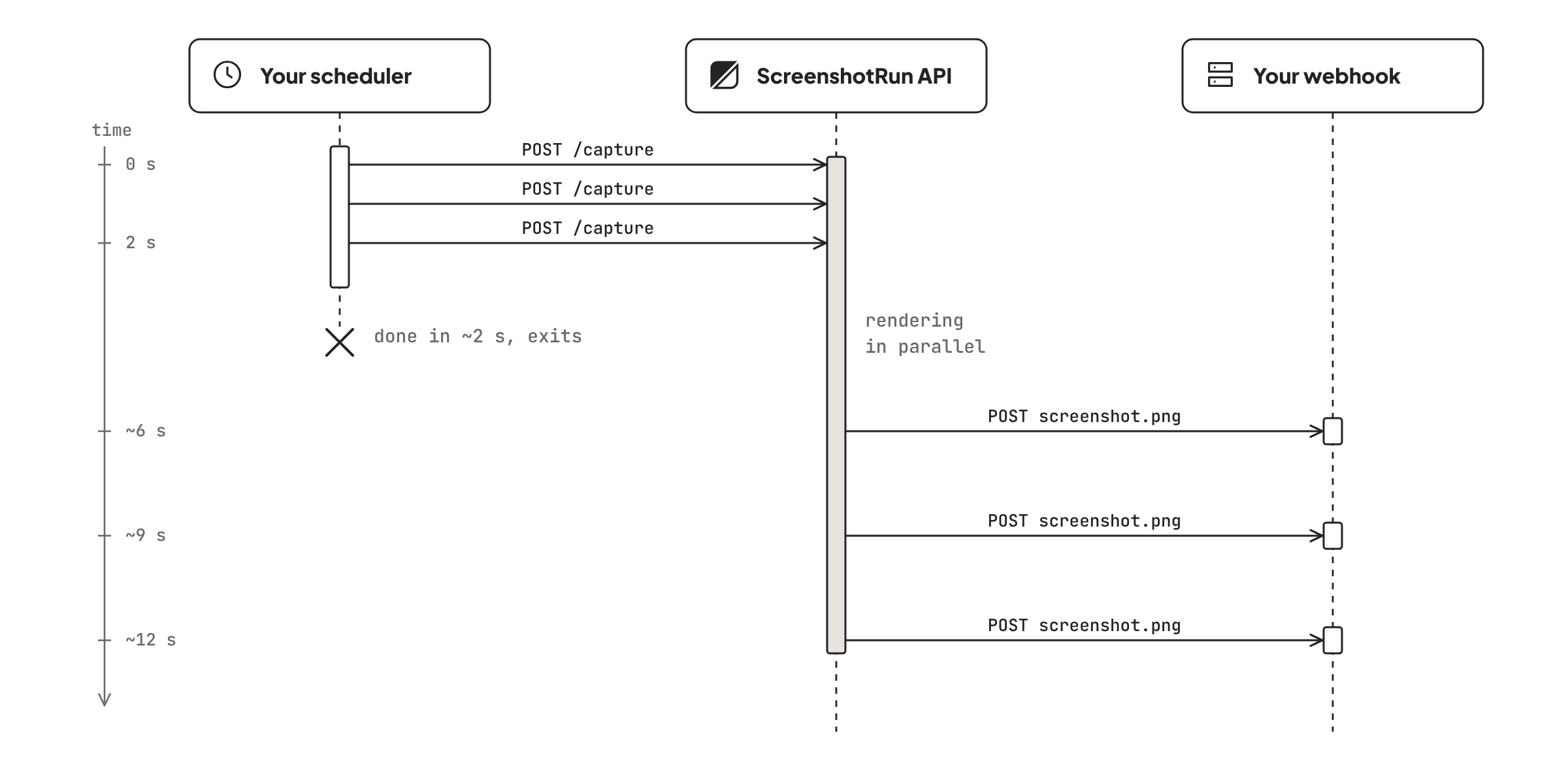
For high-volume scheduled captures (50+ URLs per run), synchronous calls get slow. Each capture takes 2-5 seconds depending on page complexity. Fifty URLs in sequence means 2-4 minutes of script runtime. Your Lambda might time out (default 3 seconds, max 15 minutes), and Vercel caps at 10 seconds on hobby plans.
The webhook parameter fixes this. Fire all requests with webhook_url and let the API POST results back as they finish. Your scheduled function completes in seconds because it only dispatches requests. The actual screenshots arrive asynchronously at your webhook endpoint.
// Dispatch 50 captures in under 2 seconds
for (const url of urls) {
  await axios.get('https://api.screenshotrun.com/v1/screenshots/capture', {
    headers: { Authorization: `Bearer ${process.env.SR_KEY}` },
    params: {
      url,
      full_page: true,
      format: 'webp',
      webhook_url: 'https://your-app.com/webhook/screenshot',
    },
  });
}

// Webhook handler receives each screenshot as it completes
app.post('/webhook/screenshot', async (req, res) => {
  const { url, screenshot_url, metadata } = req.body;
  await saveToStorage(url, screenshot_url);
  res.sendStatus(200);
});
This scales to hundreds of URLs per scheduled run. The API processes captures in parallel on our end, so 50 URLs finish in roughly the same time as 10. Your webhook handler ingests them as they arrive.
Parameters that keep scheduled captures consistent
When you're comparing screenshots over time, visual consistency matters more than image quality. A rotating ad or cookie banner that appears in half your captures makes the archive useless for spotting real changes.
| Parameter | Value | Why it matters for scheduling |
|---|---|---|
block_cookies |
true |
Consent banners cover different content areas each visit |
block_ads |
true |
Ad rotations produce false positives in change detection |
cache_ttl |
0 |
Forces a fresh render (you don't want yesterday's cached image) |
delay |
2000 |
Consistent delay lets the page settle to the same state each time |
width |
1280 |
Lock the viewport so layout stays comparable across captures |
format |
webp |
Smaller files keep your archive manageable at volume |
One gotcha we hit internally: if you don't pin width, the default 1280px viewport still applies, but any future API default change would break your archive consistency. Pin it explicitly.
Why an API beats Stillio or Visualping for this
Tools like Stillio and Visualping do scheduled screenshots out of the box. You enter a URL, set a frequency, screenshots appear in their dashboard. That's genuinely useful if a dashboard is all you need.
The API approach wins when your screenshots need to go somewhere else:
- Into your own storage (S3, database, Slack channel, Jira ticket) rather than a third-party dashboard you check manually
- Conditional captures: only after a deploy, only if a price changed, only during business hours in a specific timezone
- Parameters that standalone tools don't expose: CSS/JS injection, stealth mode, geolocation, custom headers for authenticated pages
- Post-capture processing: OCR, pixel diff against the previous capture, PDF conversion, metadata extraction
Stillio starts at $29/month for 2,000 screenshots. Visualping's screenshot tier is around $20. ScreenshotRun's Starter plan is $9/month for 3,000 screenshots with the full API. But the price gap matters less than the integration story: if screenshots end up in another system anyway, cutting out the middleman dashboard removes a step and a failure point.
When scheduled captures fail silently
Screenshots fail. Pages go down, DNS hiccups, a deploy breaks the target URL for 10 minutes. In a manual workflow you try again. In an automated schedule, the failure vanishes unless you've built monitoring around it.
Your capture script needs to do four things:
- Retry 2-3 times with a 5-10 second gap between attempts. Most transient failures resolve on the first retry.
- Log every capture with timestamp, URL, HTTP status, and output path. Structured JSON lines work best for grepping later.
- Alert on consecutive failures. One missed capture is noise. Three in a row means the page is down or your API key expired.
- Write a summary at the end of each run (total captured, total failed, duration). When you're scheduling 50+ URLs, that summary is the first thing you check.
Lambda and Cloud Functions handle retries natively. Configure 2 retries in EventBridge, and a failed invocation re-runs automatically. Add a dead letter queue (SQS or Pub/Sub) to catch permanently failed captures for manual review.
One thing I'd skip: don't build custom alerting from scratch. Route your capture logs to Datadog, Sentry, or even a Slack webhook, and set a threshold alert there. Rolling your own monitoring for your monitoring script is the kind of yak-shaving that never ends.
What this approach doesn't solve
Being upfront about the edges. The API captures what Chrome renders at a given URL and moment. It doesn't diff images, detect changes, or decide whether a change matters. That logic lives in your code. If you need built-in change detection with threshold alerts and no coding, website change monitoring tools like Visualping or Distill.io are more appropriate than a raw API.
SPAs with client-side routing can be unpredictable on scheduled captures. If the page needs a logged-in session to render the right content, an anonymous API call shows the login screen every time. The screenshot behind login page covers workarounds, but they require app-specific setup.
Infinite scroll pages don't have a natural endpoint for full_page mode. The screenshot gets tall. Really tall. We cap it at 16,384px by default, which covers most content, but if the page keeps loading, you'll miss the bottom. For those, targeting a specific selector works better than full-page capture.
Real cost at scale
Numbers for planning, assuming WebP with full_page=true:
| Setup | Daily captures | Monthly total | Plan |
|---|---|---|---|
| 5 URLs, 4x daily | 20 | ~600 | Starter ($9/mo) |
| 20 URLs, 4x daily | 80 | ~2,400 | Pro ($29/mo) |
| 50 URLs, hourly | 1,200 | ~36,000 | Growth ($79/mo) |
| 100 URLs, every 2h | 1,200 | ~36,000 | Growth ($79/mo) |
Storage is cheap. Those 36,000 monthly WebP files average 150-250 KB each (full-page, quality 85). That's 5-9 GB per month, or $0.12-0.21 on standard S3. Move older captures to Glacier and a full year of daily screenshots across 20 URLs costs under $3 in storage. The API plan is the real expense, not the archive.
Check the pricing page for current plan limits. If your volume spikes during an incident (and it will), overage is billed per-screenshot, not as a surprise tier upgrade.
Why ScreenshotRun for scheduled captures
You could wire up Puppeteer on a cron job and handle everything yourself. We did exactly that before building the API, and it worked until it didn't. Chrome updates broke rendering every six weeks. Memory leaks piled up after a few hundred captures per day, and the process would quietly die at 2 AM with no alert. Restarting it manually at that hour is the kind of problem you solve once and never want to solve again.
The API removes the browser management layer entirely. Your cron job, Lambda, or Zapier trigger sends an HTTP request. We spin up a fresh Chrome instance, load the page, wait for it to settle, take the screenshot, and return the image. Each capture gets its own isolated browser (no cookies, no cache, no state leaking from previous runs), which is exactly what you want for consistent scheduled archives.
A few things that matter specifically for scheduling workflows. block_cookies and block_ads strip visual noise that makes time-series comparisons unreliable. The webhook parameter keeps your scheduled function fast by offloading delivery to an async callback. Geolocation lets you capture the same URL from different regions on different schedules, useful for teams tracking localized content or geo-targeted pricing. And cache_ttl=0 guarantees every scheduled capture is a real, fresh render.
The free plan gives you 200 screenshots every month — enough to set up a cron job across a handful of URLs and see if the output fits your workflow. When you need more volume, paid plans start at $9/month. Setup takes about 10 minutes if you already have a scheduler in place.
FAQ#
No. The API is stateless — it captures a screenshot when you call it and returns the image. Scheduling is handled by your own infrastructure: cron, AWS EventBridge, GitHub Actions, Zapier, or any tool that can send an HTTP request on a timer. This gives you full control over intervals, conditions, and storage.
The Starter plan includes 1,500 screenshots per month. If you capture 5 URLs four times a day, that is 600 monthly captures with room to spare. For 20+ URLs on an hourly schedule, the Growth plan (5,000/month) or Business plan (15,000/month) is a better fit. See the pricing page for current limits.
The API returns an HTTP error code. What happens next depends on your scheduler. Lambda and Cloud Functions can retry automatically. For cron-based scripts, add retry logic in your code (2-3 attempts with a 5-second gap covers most transient failures). The webhook parameter also helps — failed captures don not trigger a webhook callback, so the absence of a callback is itself a signal.
Yes. Add the parameter to your API call to capture from a specific country. You can run separate scheduled jobs for each region — for example, capture your pricing page from the US at 9 AM EST and from Germany at 9 AM CET — to compare geo-targeted content.
Set to a value matching your expected change frequency. If a page changes once a day, prevents duplicate renders within the same hour. For monitoring workflows where you specifically need to detect changes, keep and compare screenshots in your own code after capture.
WebP at quality 85. It produces files 60-70% smaller than PNG with no visible quality loss, which keeps storage costs low at scale. Use PNG only when you need pixel-perfect fidelity for legal or compliance archives. PDF works for document-style pages where you need a printable format.