
 Vitalii Holben
Fix Failed to Launch the Browser Process in Puppeteer
Every cause of Puppeteer browser launch failures with tested fixes for each environment.
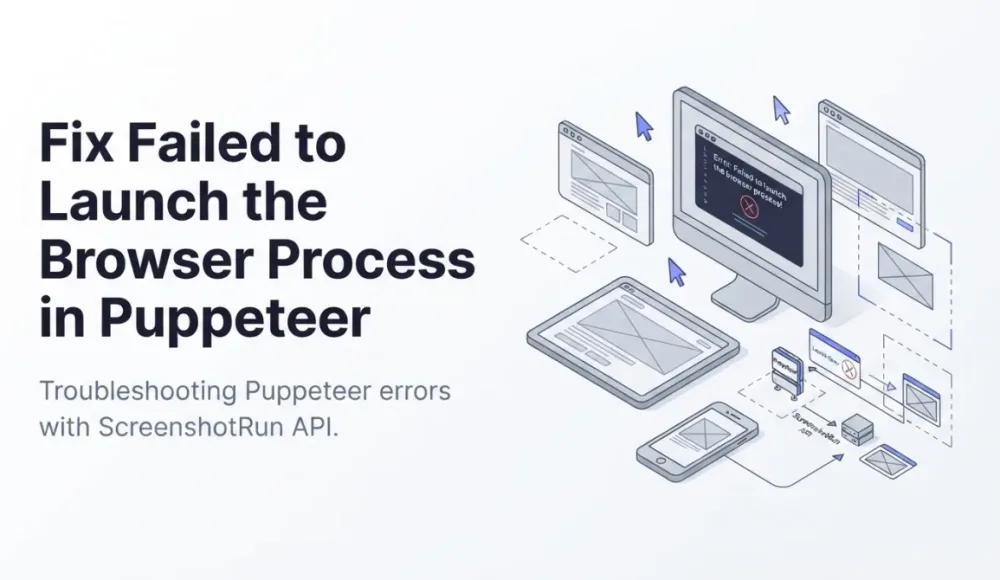
You run your Puppeteer script for the first time on a server and get this:
Error: Failed to launch the browser process!
/home/user/.cache/puppeteer/chrome/linux-131.0.6778.204/chrome-linux64/chrome:
error while loading shared libraries: libnss3.so: cannot open shared object file
The code is fine. It ran perfectly on your laptop. But the server is missing something Chrome needs to start, and the error message doesn't really tell you what.
The "puppeteer failed to launch browser process" error has a different cause almost every time. I've hit it on fresh Ubuntu servers, inside Docker containers, in GitHub Actions after a runner update, and once on a Mac after a Homebrew cleanup. This is how to figure out which problem you have.
If Chrome starts successfully but dies during script execution, that's a browser disconnected error — different problem, different fixes.
Read the Lines After the Error
Most people see "Failed to launch the browser process" and immediately go to Google. Wait. The real clue is in the lines right after that message, but Puppeteer doesn't show them by default.
Add one option to your launch call to make Chrome print what actually went wrong:
const browser = await puppeteer.launch({
  dumpio: true,  // makes Chrome print its errors to your terminal
  headless: true
});
Now you'll see the real error in your console. Look for one of these:
error while loading shared libraries: libXXX.so— your server is missing a library Chrome needsNo usable sandbox!— Chrome can't set up its security layer (common in Docker)ENOENT— the Chrome program file doesn't exist where Puppeteer expects itEACCES— Chrome exists but your script doesn't have permission to run itFailed to connect to the bus— a Docker-specific issue with system messaging
Each one points to a different fix. Without dumpio, you're guessing.
Puppeteer Chromium Not Found: Missing Libraries on Linux
Chrome isn't just one file. It depends on about 40 small programs (called libraries) that handle things like fonts, graphics, and security. On your laptop these are already installed because your operating system needs them for its own desktop. A server doesn't have a desktop, so those libraries aren't there.
You can check which ones are missing:
# Find where Chrome is on your server
find ~/.cache/puppeteer -name chrome -type f

# See which libraries it needs but can't find
ldd /path/to/chrome | grep "not found"
On Ubuntu or Debian, install them all at once:
apt-get update && apt-get install -y \
  libnss3 libatk1.0-0 libatk-bridge2.0-0 \
  libcups2 libdrm2 libxkbcommon0 \
  libxcomposite1 libxdamage1 libxrandr2 \
  libgbm1 libasound2 libpango-1.0-0 libcairo2
You don't need to know what each one does. Just install the full list and Chrome will have what it needs. On Alpine Linux (a smaller Linux variant common in Docker), the package names are different, and honestly, switching to a Debian-based Docker image is usually easier than figuring out the Alpine equivalents.
Could Not Find Expected Browser (ENOENT)
We wrote a full guide on this specific error covering Docker, CI/CD, serverless, monorepos, and pnpm. Below is the quick version.
This error means Puppeteer went to open Chrome and there was nothing there. The folder where Chrome should be is empty. Three reasons this happens.
First, the Chrome download might have been skipped. If someone added PUPPETEER_SKIP_DOWNLOAD=true to speed up installs (or the older name PUPPETEER_SKIP_CHROMIUM_DOWNLOAD), Puppeteer never downloaded Chrome in the first place. Remove that setting, or download Chrome yourself:
npx puppeteer browsers install chromeSecond, Puppeteer might be looking in the wrong folder. Version 19 changed where it stores Chrome. Older versions put it inside node_modules/. Newer versions use ~/.cache/puppeteer/. If you recently upgraded Puppeteer but your deploy process still saves the old folder, Chrome ends up in the wrong place. Run this to see where Puppeteer is actually looking:
npx puppeteer browsers listThird, you might have installed puppeteer-core instead of puppeteer. They sound similar, but there's an important difference: the regular puppeteer package downloads Chrome for you automatically. The puppeteer-core package does not. If you're using the core version, you need to tell it where to find Chrome on your machine:
const browser = await puppeteer.launch({
  executablePath: '/usr/bin/google-chrome-stable'
});
On macOS that path is /Applications/Google Chrome.app/Contents/MacOS/Google Chrome. On Linux servers, install Chrome through apt or yum and point to it.
No Usable Sandbox in Docker
Docker creates two problems at once. First, the missing libraries from the section above. Second, something called sandbox restrictions.
Chrome normally runs each tab in an isolated box (a "sandbox") so that a malicious website in one tab can't affect the rest of your computer. To set this up, Chrome needs certain permissions from the operating system. Docker doesn't give those permissions by default, so Chrome sees no way to create its safety box and refuses to start.
The most common fix is to tell Chrome to skip the sandbox entirely:
const browser = await puppeteer.launch({
  args: ['--no-sandbox', '--disable-setuid-sandbox']
});
This is fine for most use cases. If you're only visiting your own websites or trusted URLs, the sandbox isn't protecting you from much anyway.
A working Dockerfile that includes both the libraries and the right launch config:
FROM node:20-slim

RUN apt-get update && apt-get install -y \
  libnss3 libatk1.0-0 libatk-bridge2.0-0 \
  libcups2 libdrm2 libxkbcommon0 \
  libxcomposite1 libxdamage1 libxrandr2 \
  libgbm1 libasound2 libpango-1.0-0 libcairo2 \
  && rm -rf /var/lib/apt/lists/*

WORKDIR /app
COPY package*.json ./
RUN npm ci
COPY . .
CMD ["node", "index.js"]
One more thing: if Chrome starts but then immediately crashes with "Page crashed!", that's a different problem. Docker gives Chrome very little shared memory by default (64 MB), and Chrome needs more. Add --shm-size=2g when you run your container. We wrote a separate guide on that error.
GitHub Actions and CI Pipelines
This is where the error is most confusing. Your automated builds work fine for months. Then one morning everything is red. You didn't change anything.
What happened: the machine that runs your builds got a software update. When GitHub Actions updates its Ubuntu version, new security settings can block Chrome's sandbox. Ubuntu 24.04 added a feature called AppArmor that prevents Chrome from creating its safety box. Hundreds of projects broke overnight when that update rolled out.
The fix is the same as Docker. Add --no-sandbox to your launch options:
const browser = await puppeteer.launch({
  args: ['--no-sandbox', '--disable-setuid-sandbox'],
  headless: true
});
Also make sure Chrome is actually installed in your build. Add this step before your script runs:
npx puppeteer browsers install chromeIf you're using ScreenshotRun in GitHub Actions, you don't need Chrome at all. The API takes screenshots on its own servers, so there's nothing to install.
For CircleCI, use an image that already has browsers: cimg/node:20.0-browsers. GitLab CI works the same way. The pattern across all CI systems is identical: make sure Chrome's libraries are installed, turn off the sandbox, confirm the Chrome file exists.
Serverless (Lambda, Cloud Functions, Vercel)
Serverless platforms like AWS Lambda have a strict file size limit. Lambda allows 250 MB total for your code and everything it needs. Chrome alone takes about 280 MB. It literally doesn't fit.
The solution is a special compressed version of Chrome made specifically for Lambda:
npm install puppeteer-core @sparticuz/chromiumconst chromium = require('@sparticuz/chromium');
const puppeteer = require('puppeteer-core');
exports.handler = async () => {
const browser = await puppeteer.launch({
args: chromium.args,
executablePath: await chromium.executablePath(),
headless: chromium.headless,
});
// ... your code
};On Vercel, watch out for a subtle bug. When you run vercel dev on your computer, Vercel sets an environment variable VERCEL=1. If your code uses that variable to decide which Chrome to load, it'll pick the wrong one locally. Use process.env.AWS_LAMBDA_FUNCTION_NAME to detect Lambda instead, or create your own IS_LOCAL flag.
Google Cloud Run has a different issue: it pauses the CPU after sending a response. If Chrome is still shutting down at that point, the next request finds a broken browser. Set --no-cpu-throttling in your Cloud Run config to keep the CPU running between requests.
Permission Errors
If Chrome is there but you see EACCES: permission denied, your script isn't allowed to run it. This usually means Chrome was installed by one user (like root) but your app runs as a different user who doesn't have access.
Find Chrome and give your user permission to run it:
# See where Chrome is installed
npx puppeteer browsers list

# Make it runnable
chmod +x /path/to/chrome
If you're running Docker with a non-root user (which is a good practice), make sure that user owns the folder where Puppeteer keeps Chrome.
When Fixing Browser Launch Stops Making Sense
Look at everything you've done so far. Install libraries. Configure the sandbox. Write a Dockerfile. Fix CI. Set up a Lambda shim. That's a lot of work just to take a screenshot of a website.
If screenshots or PDFs are your actual goal (not browser automation like filling out forms or scraping data), you're maintaining Chrome infrastructure for one simple task. One API call does the same thing without any of that setup:
curl "https://api.screenshotrun.com/v1/screenshots/capture?url=https://example.com&format=png&full_page=true" \
  -H "Authorization: Bearer YOUR_API_KEY"
ScreenshotRun takes care of Chrome, the libraries, and the sandbox on its end. You send a URL, you get back an image. Works the same from a Lambda function, a GitHub Actions workflow, or a Node.js script. The API supports full-page captures, PDF export, dark mode, and multiple formats.
This only makes sense if your end goal is a screenshot or PDF. If you're automating login flows, running visual regression tests, or scraping data across pages, Puppeteer is still the right choice. No shortcut around that.
Frequently Asked Questions
Chrome depends on about 40 system libraries for graphics, fonts, and security. Your laptop has them because of the desktop environment. Linux servers don't have a desktop, so those libraries are missing. Install them with apt-get (the full list is in the article above) and Chrome will start.
Add --no-sandbox and --disable-setuid-sandbox to your Puppeteer launch args. Docker and most CI runners don't give Chrome the permissions it needs for sandboxing. Disabling the sandbox is safe if you're only visiting trusted URLs.
The regular puppeteer package downloads Chrome automatically during npm install. The puppeteer-core package does not — you need to install Chrome yourself and provide the path via executablePath in your launch options. Use puppeteer-core when you want to control which Chrome version to use, or in serverless environments where you need a compressed binary.
Standard Puppeteer doesn't fit in Lambda's 250 MB size limit. Use puppeteer-core with the @sparticuz/chromium package, which provides a compressed Chrome binary designed for Lambda. Install both packages and use chromium.executablePath() in your launch configuration.
GitHub Actions periodically updates its runner images. When the Ubuntu version changes, new security defaults (like AppArmor in Ubuntu 24.04) can block Chrome's sandbox. Add --no-sandbox to your Puppeteer launch args and make sure Chrome is installed with npx puppeteer browsers install chrome.
Run ldd /path/to/chrome | grep "not found" to see exactly which shared libraries Chrome needs but can't find. First locate Chrome with find ~/.cache/puppeteer -name chrome -type f, then run the ldd command on that path.
Fix "Could Not Find Expected Browser (Chrome) Locally" in Puppeteer
Puppeteer cannot find Chrome? Fix the "could not find expected browser locally" error in Docker, CI/CD, serverless, monorepos, and local development.
Read more →
Fix Puppeteer "Browser Has Disconnected" Error (All Causes)
Read more →
Why Instagram Breaks Your Screenshots (And How to Fix It with Playwright)
Instagram shows two login popups, triggers React re-renders when you hide them wrong, and locks scrollHeight to the viewport. Three problems, three fixes for Playwright and Puppeteer.
Read more →